Publish and protect Vanilla app
Let’s continue with Vanilla application. Reminder, Vanilla application as Authentication enabled with Kerberos auth. So, we will need to enable Kerberos Constrained Delegation.
Connect to BIG-IP HTTPS user interface from UDF as
adminand passwordadminIn
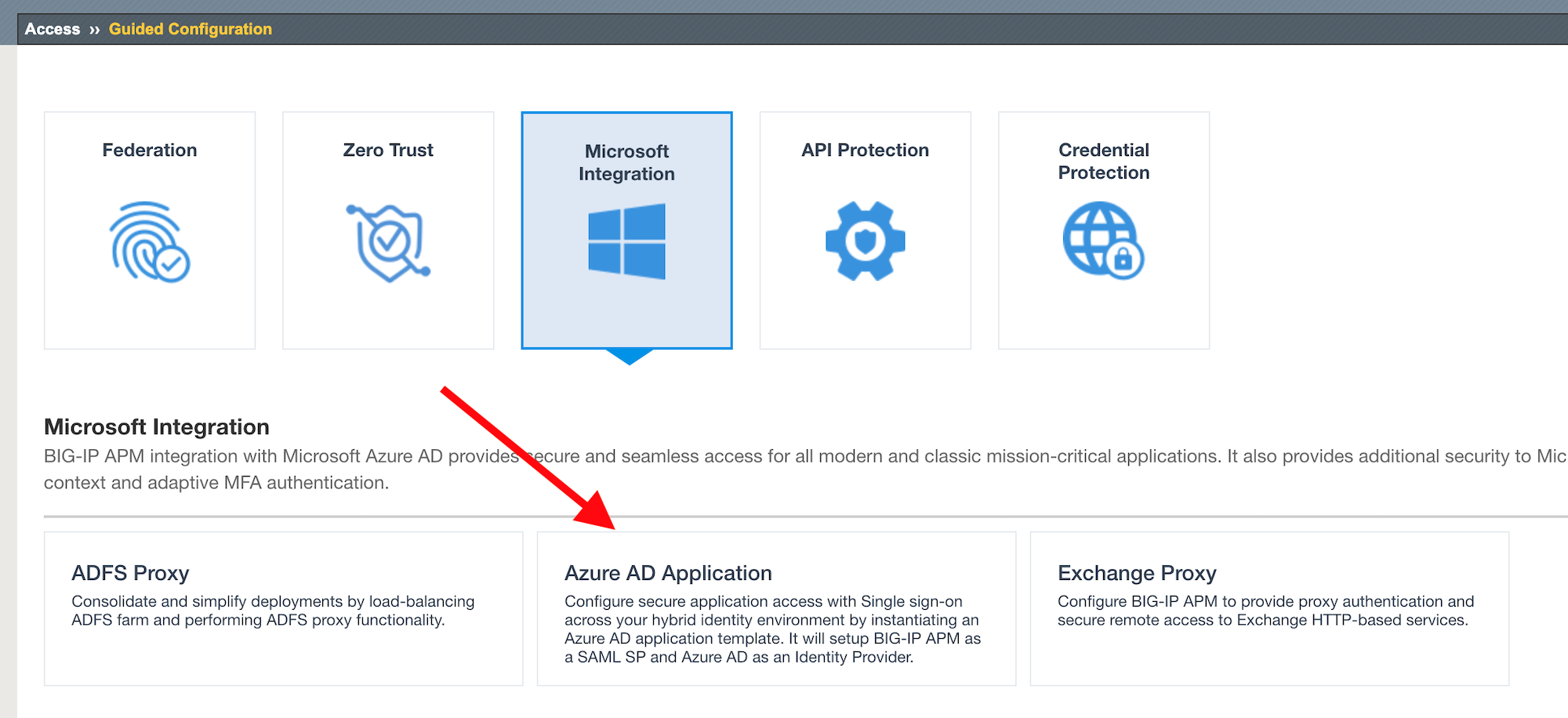
Access>Guided Configuration, selectMicrosoft Integration>Azure AD applicationNote
As you can notice, we deploy one template per application
Configuration Properties
Click
Nextand start the configurationConfigure the page as below
Configuration Name :
IIS-Vanilla-<My Name>Why my name ? Because this app will be created in Azure AD tenant. And we need to differentiate all apps.Enable
Single Sign-on (SSO)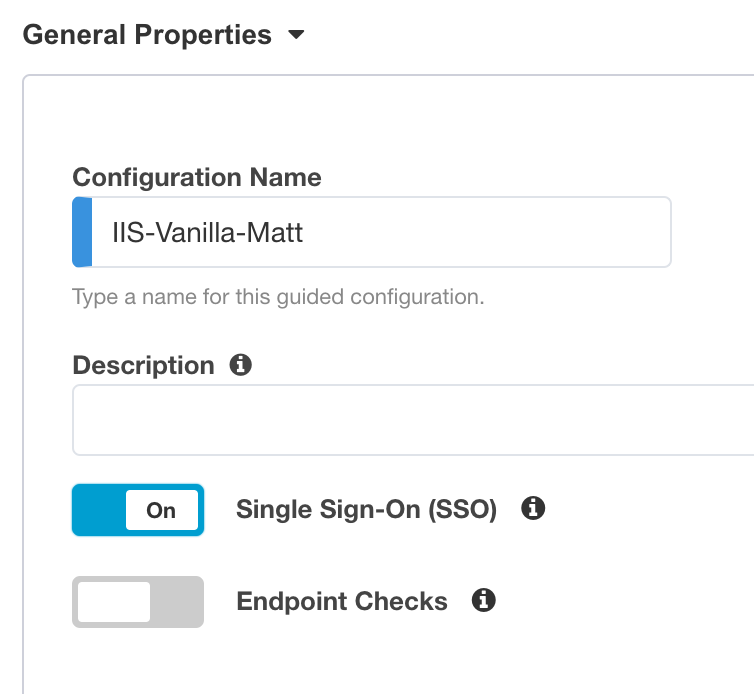
In
Azure Service Account Details, SelectCopy Account Info form Existing Configuration, and selectIIS-baseline, then clickCopy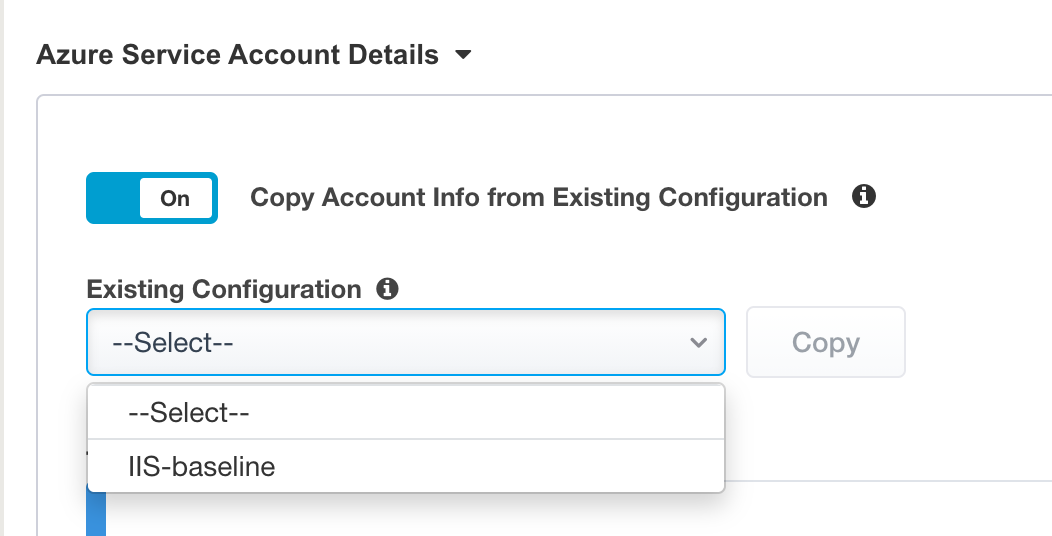
Note
In a real world, you will set here the values from the Azure Service Application created for APM. You have to create an Azure Application so that APM get access to Microsoft Graph API. But for security concerns, I can’t show in this lab the application secret.
Note
The steps to create this Azure applications are below
In Azure AD, create a service application under your organization’s tenant directory using App Registration.
Register the App as Azure AD only single-tenant.
Request permissions for Microsoft Graph APIs and assign the following permissions to the application:
Application.ReadWrite.All
Application.ReadWrite.OwnedBy
Directory.Read.All
Group.Read.All
Policy.Read.All
Policy.ReadWrite.ApplicationConfiguration
User.Read.All
Grant admin consent for your organization’s directory.
Copy the Client ID, Client Secret, and Tenant ID and add them to the Azure AD Application configuration.
Click
Test Connectionbutton –> Connection is valid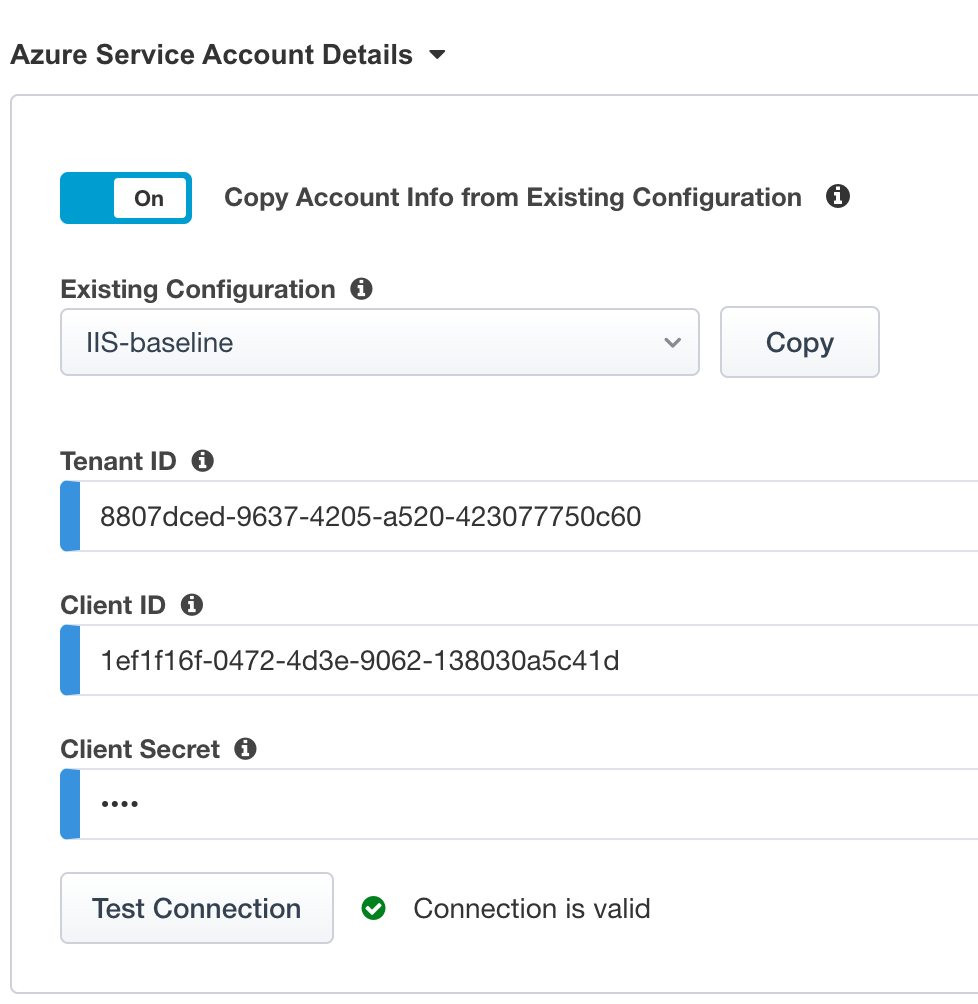
Click Next
Service Provider
Configure the page as below
Host
vanilla.f5access.onmicrosoft.comEntity ID is auto-filled
https://vanilla.f5access.onmicrosoft.com/IIS-Bluesky-my name>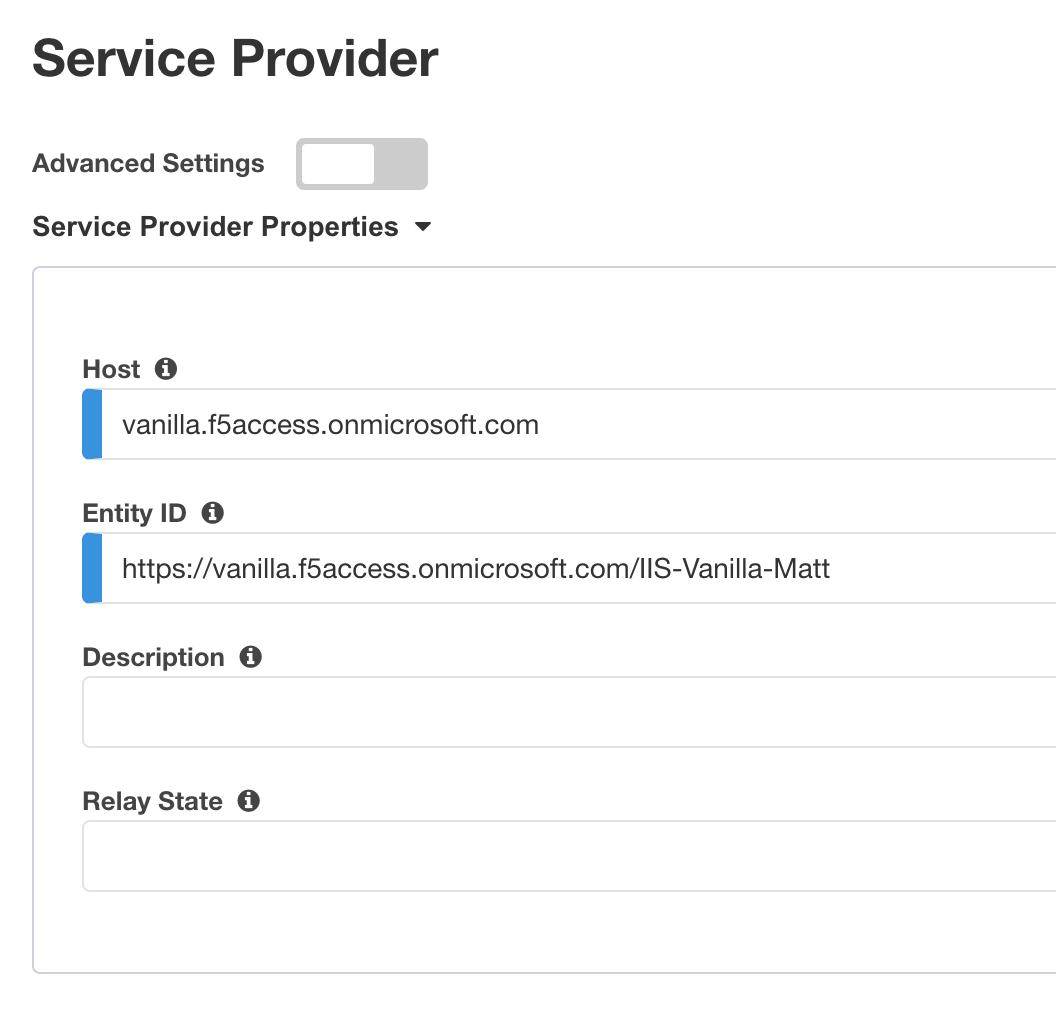
Click
Save & Next
Azure Active Directory
Select
Azure BIG-IP APM Azure AD...templateNote
As you can notice, there are several templates available for different applications. Here, in this lab, we will publish a generic app. So we select the first template.
Click
AddIn the new screen, configure as below.
Signing Key :
default.keySigning Certificate :
default.crtSigning Key Passphrase :
F5twister$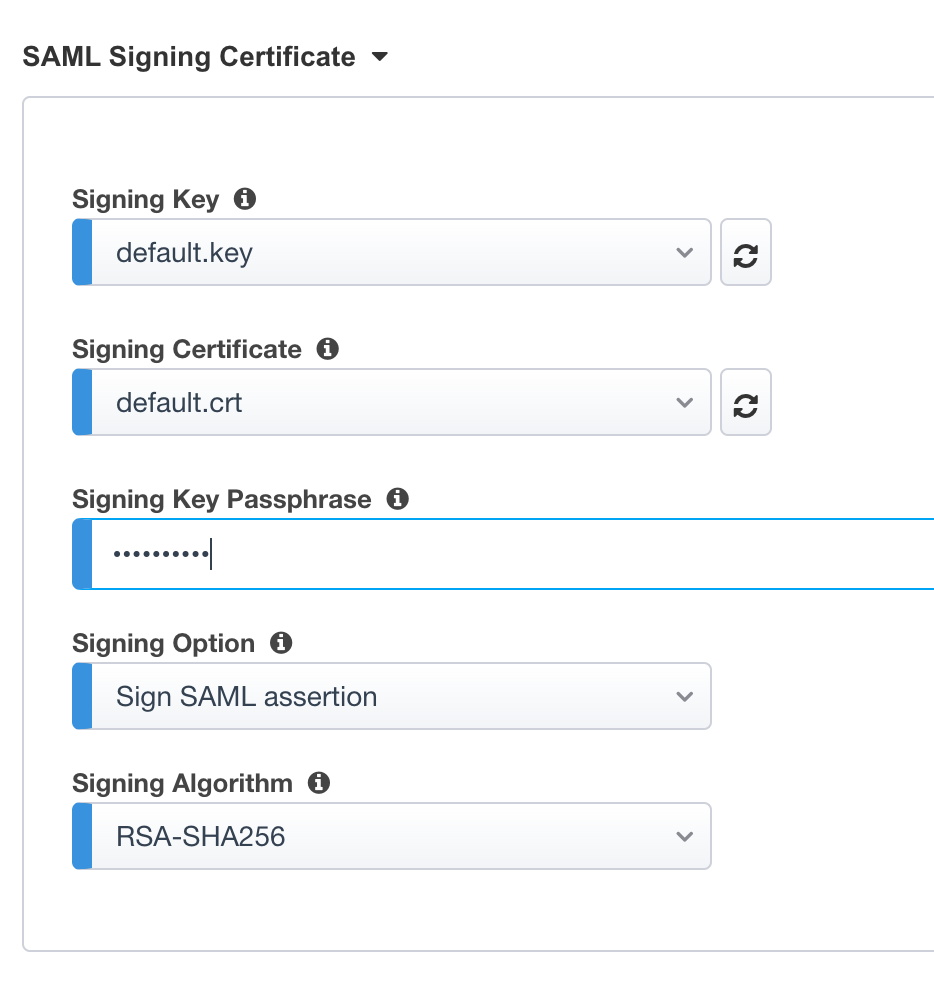
In
User And User Groups, clickAddNote
We have to assign Azure AD users/group to this app, so that they can be allowed to connect to it.
In the list, click
Addfor the useruser1. If you can’t find it, search for it in thesearchfield.
Click
CloseYou can see
user1in the list.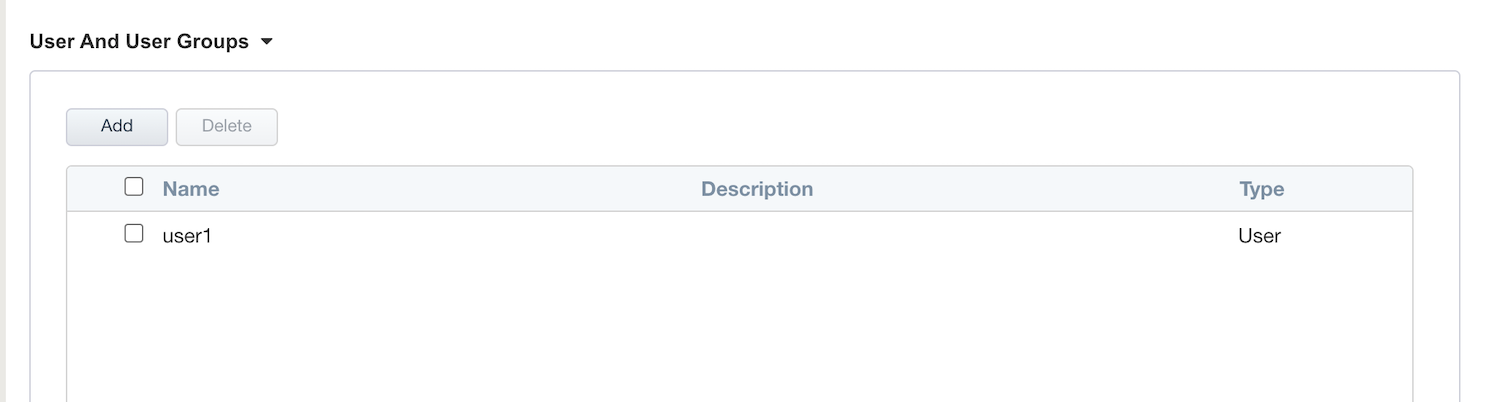
Click
Save & Next
Virtual Server Properties
Configure the VS as below
IP address :
10.1.10.103ClientSSLprofile. We will get a TLS warning in the browser, but it does not matter for this lab.
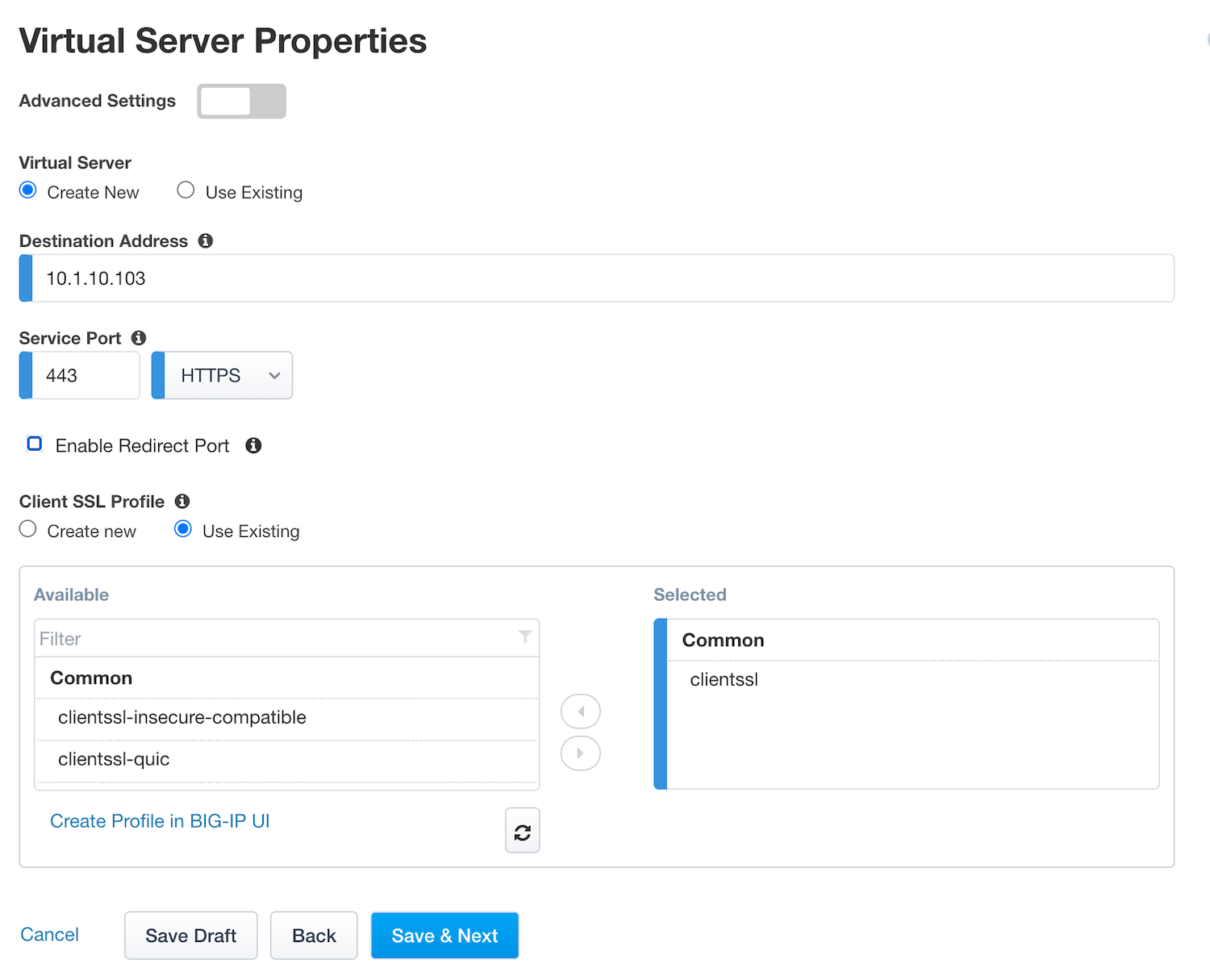
Click
Save & Next
Pool Properties
Select
Create NewIn Pool Servers, select
/Common/10.1.20.9This is the IIS server.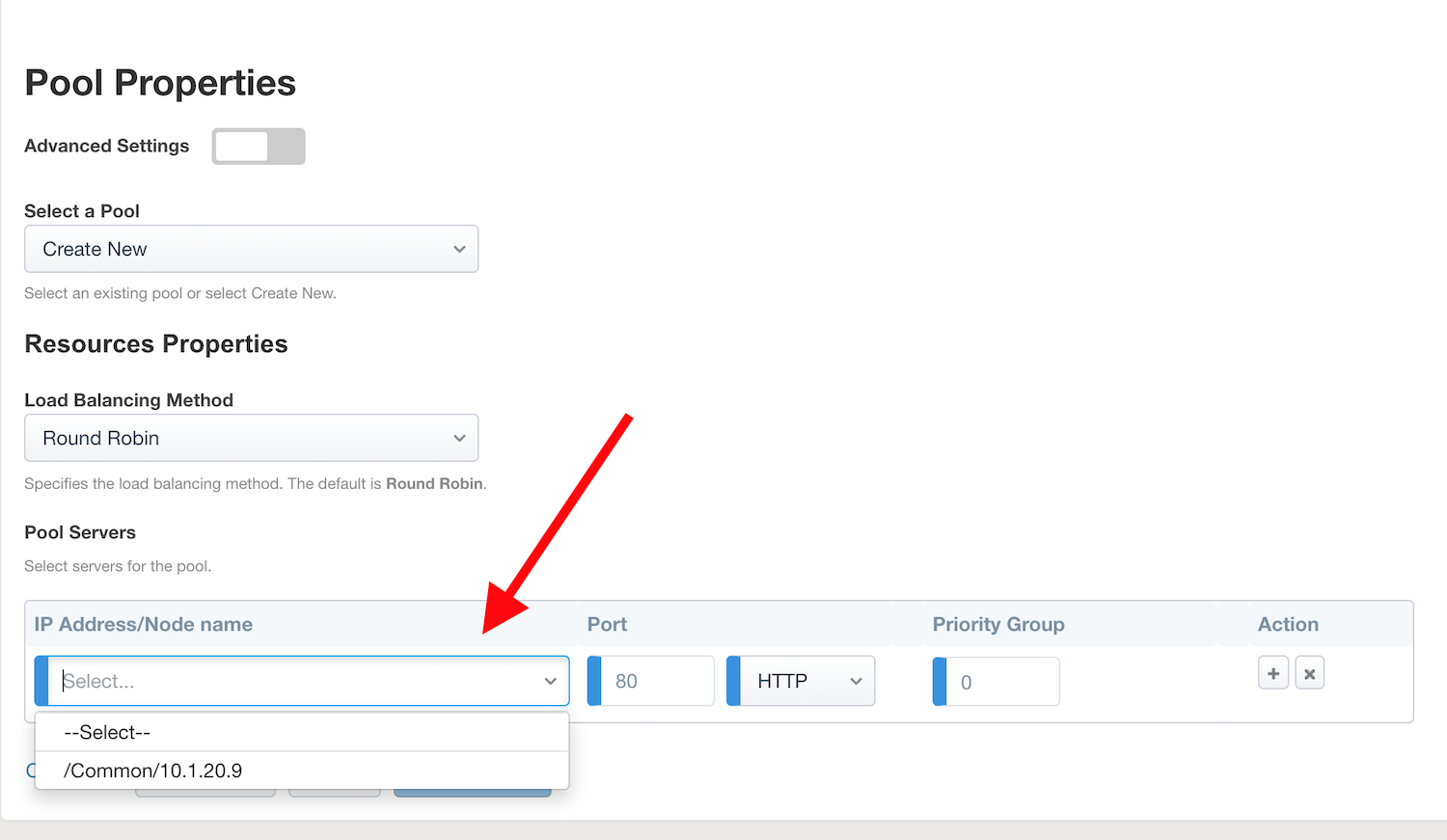
Single Sign-On Settings
In
Selected Single Sign-on Type, selectKerberos, and selectAdvanced Settings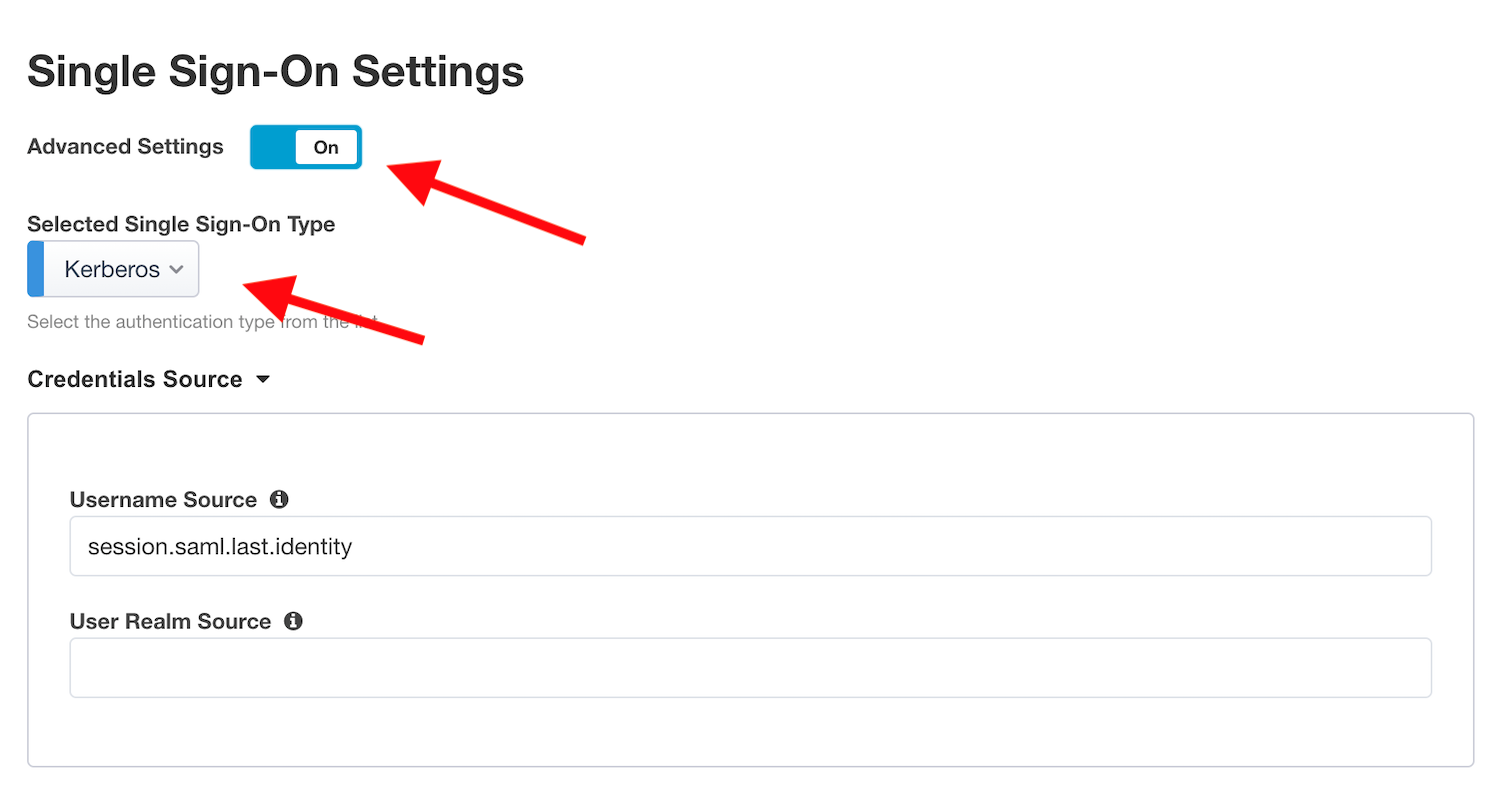
In
Credentials Source, fill as belowUsername Source :
session.saml.last.identityDelete User Realm Source value - keep it empty. The domain is similar between Azure AD and on-prems AD.
In
SSO Method Configuration, fill as belowKerberos Realm :
f5access.onmicrosoft.comAccount name :
host/apm-deleg.f5access.onmicrosoft.comAccount Password :
F5twister$KDC :
10.1.20.8UPN Support :
EnaledSPN Pattern :
HTTP/%s@f5access.onmicrosoft.com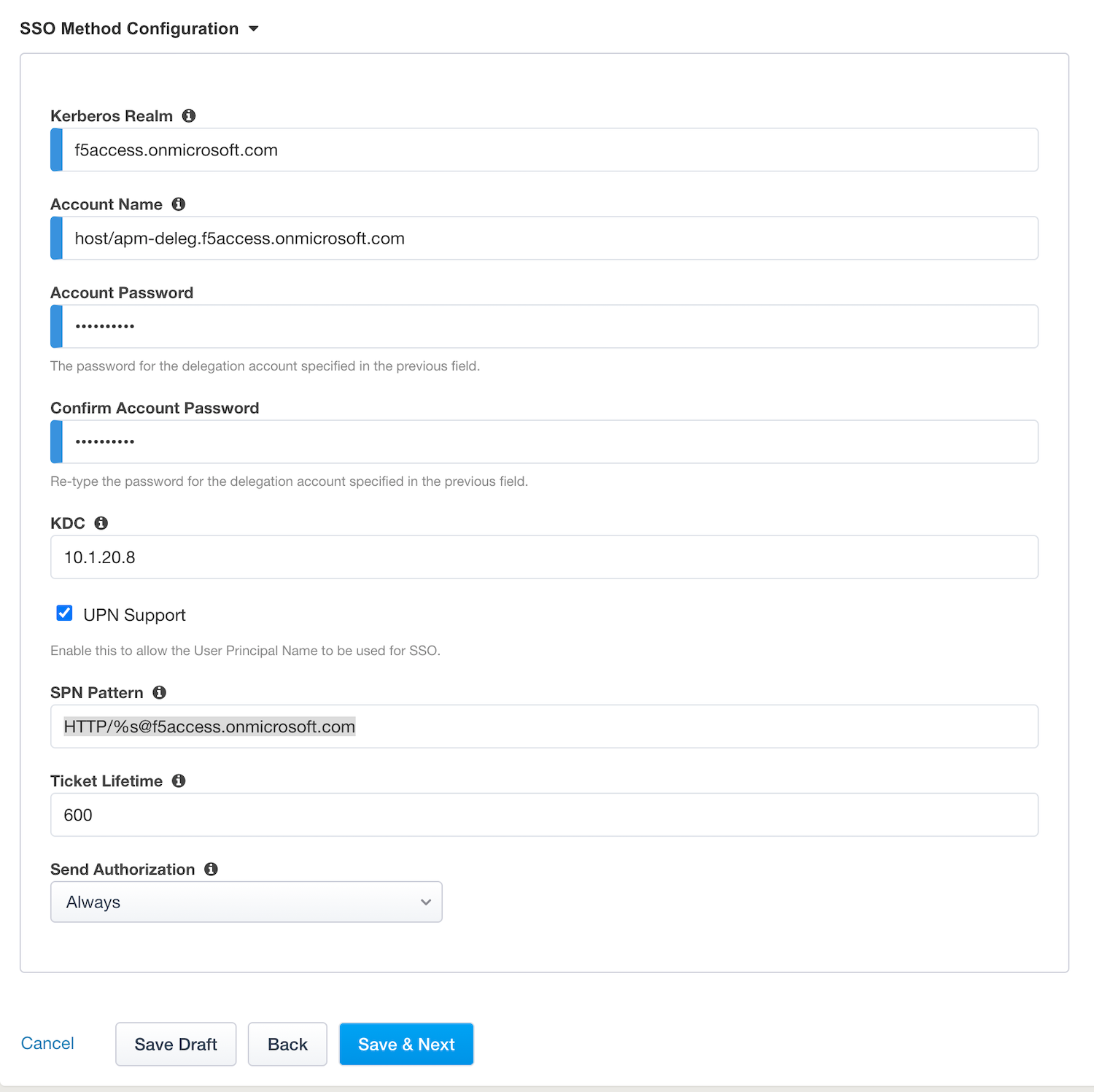
Click
Save & Next
Session Management Properties
Nothing to change, click
Save & Next
Deploy your app template
Click
Deploy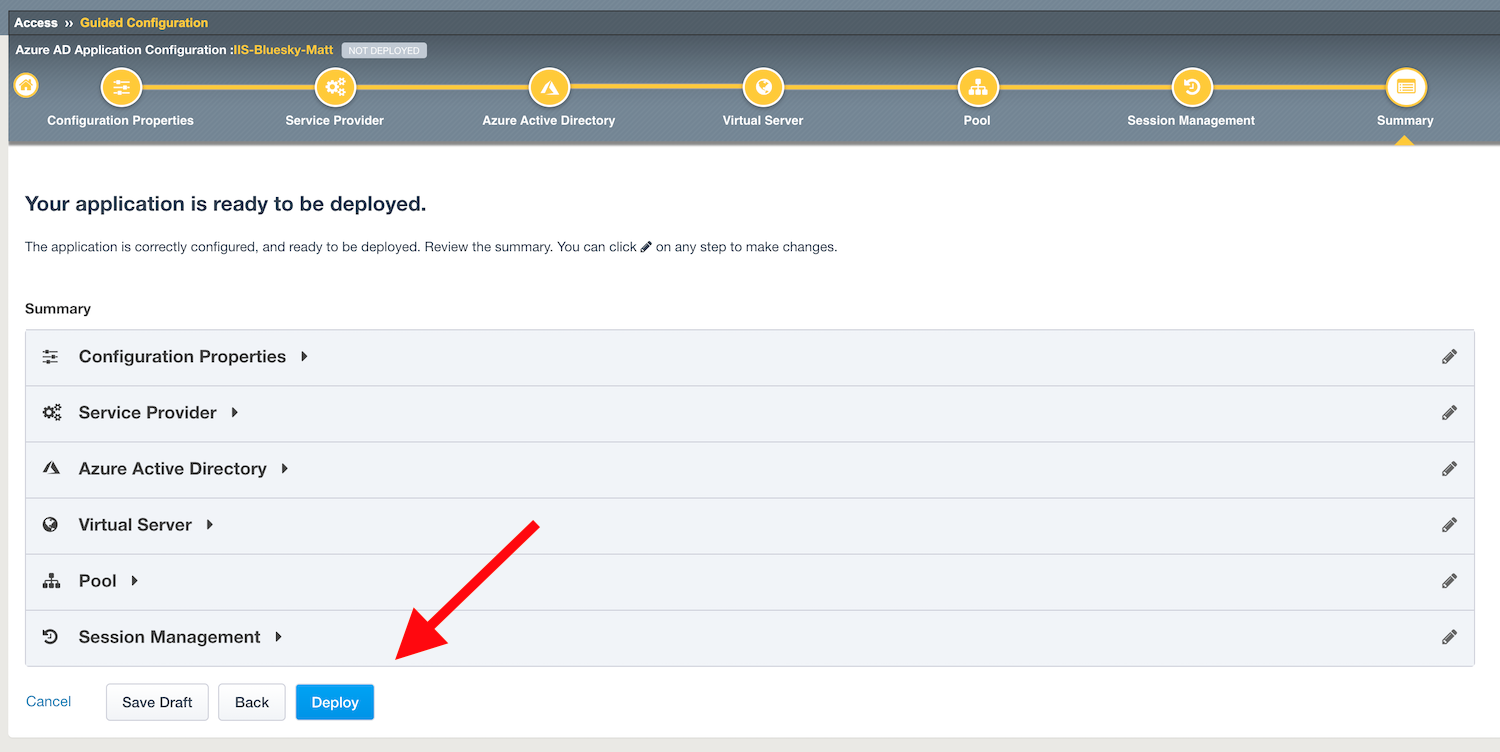
Behind the scene, the deployment creates an
Azure Enterprise ApplicationforBluesky. We can see it inAzure portal(you don’t have access in this lab). With this Enterprise Application, Azure knows where to redirect you when authenticated. And this app has the certificate and key used to sign the SAML assertion.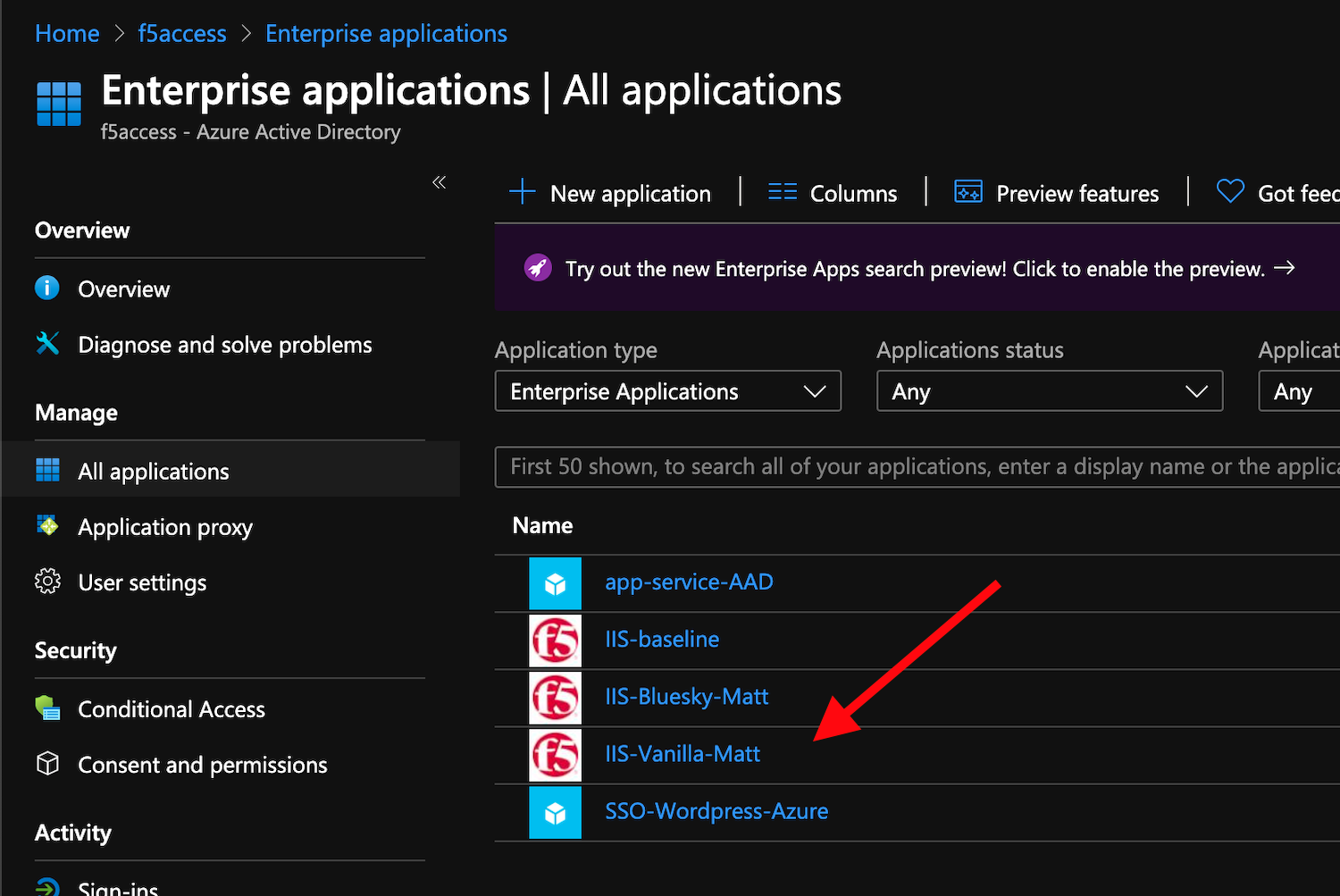
Test your deployment
RDP to Win10 machine as
userand passworduserOpen
Microsoft Edgebrowser - icon is on the DesktopClick on the
bookmarkVanillaYou will be redirected to Azure AD login page. Login as
user1@f5access.onmicrosoft.com, and for the password please ask to your instructor (if you are prompted). But as you already authenticated against Azure AD, you still have a session in Azure AD.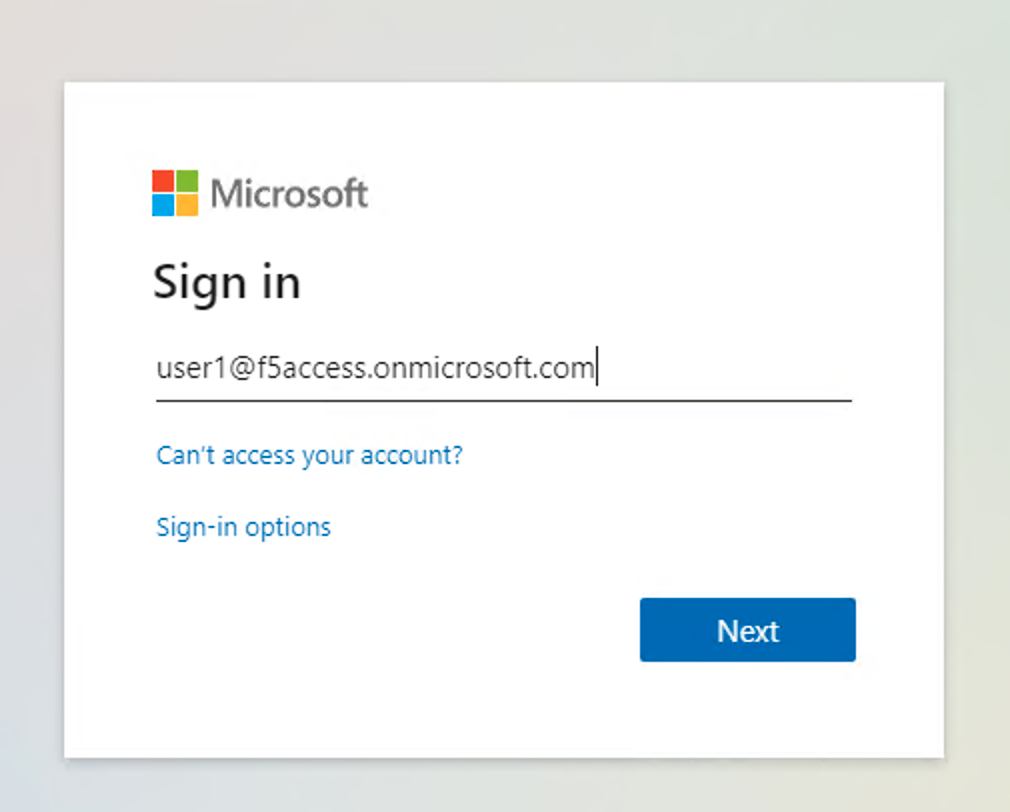
You are redirected to APM with a SAML assertion, and can access to Vanilla application.
APM did
Single Sign-onwith Vanilla application (Kerberos Constrained Delegation)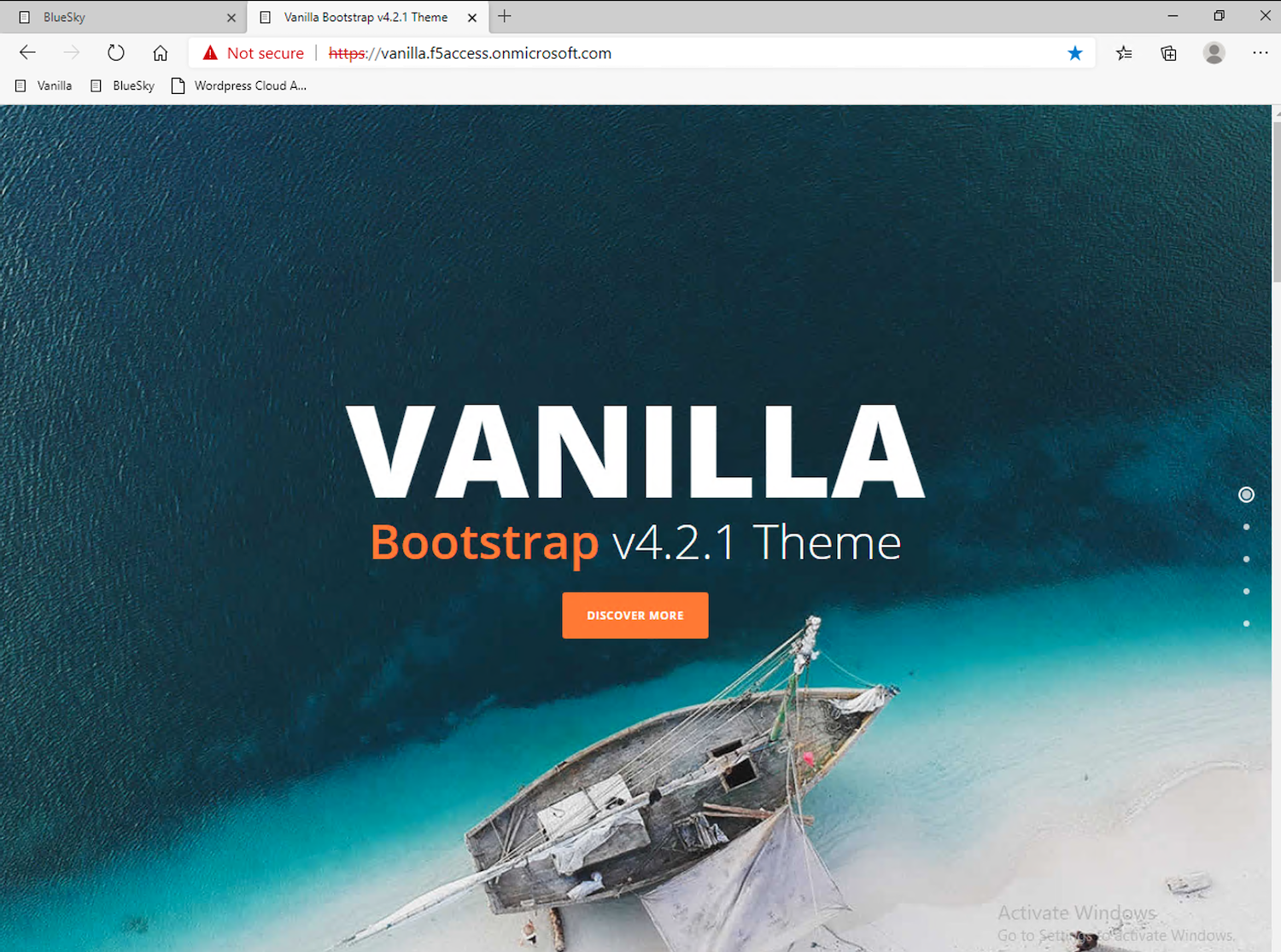
Click
Blueskybookmark, you can accessBlueskyapplication as well.Extra lab, enable
Inspect modein Edge, and follow the SAML redirections to understand the workflow.